Getting Started with CattleTrack

A few simple steps to get your herd set up, plus how to add CattleTrack to your phone's home screen so it opens like an app.

First Steps
Get your herd into CattleTrack
These five steps cover the core workflow — do them roughly in order and you'll have a working picture of your herd within your first session.

Add your herd

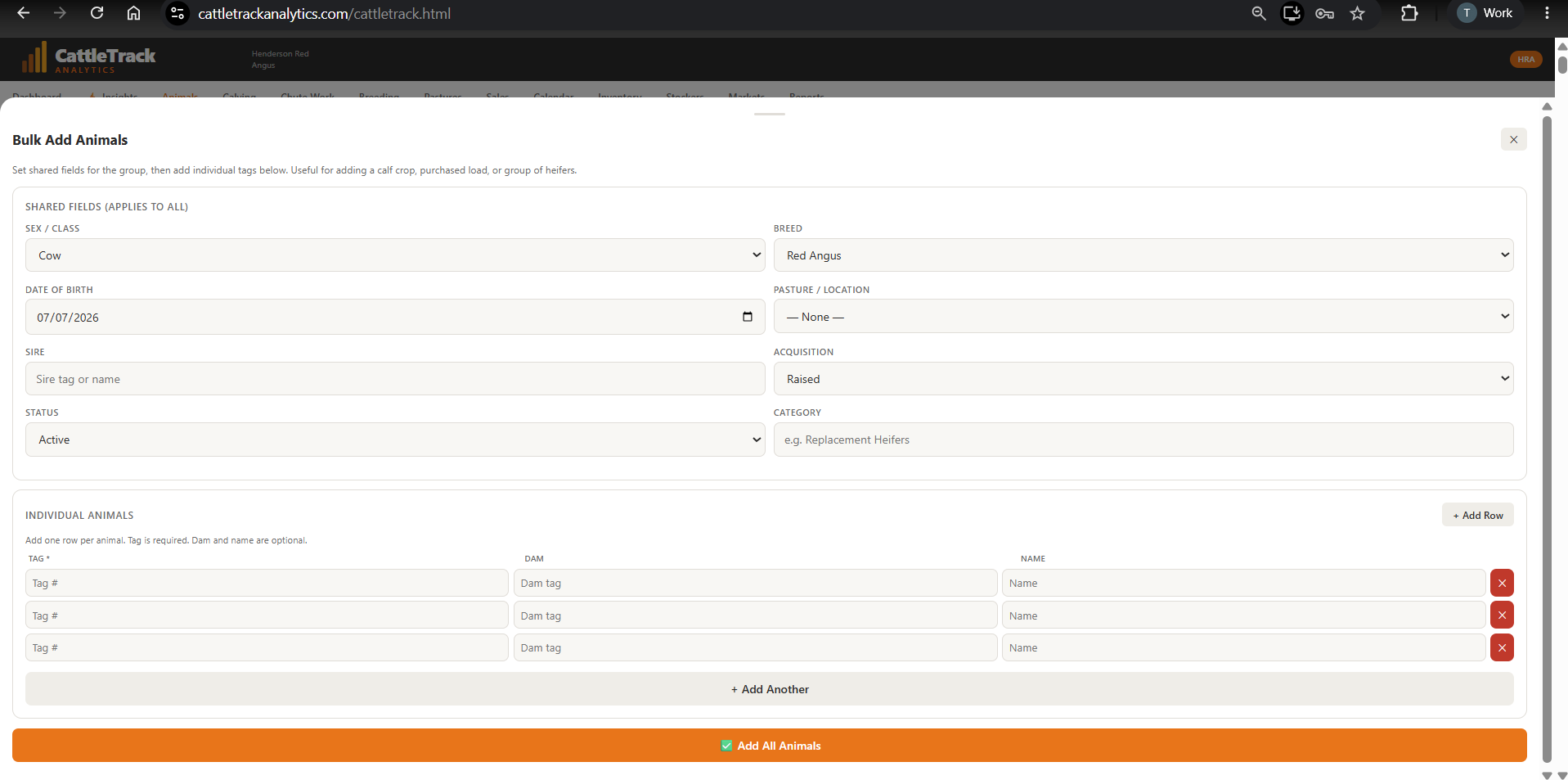
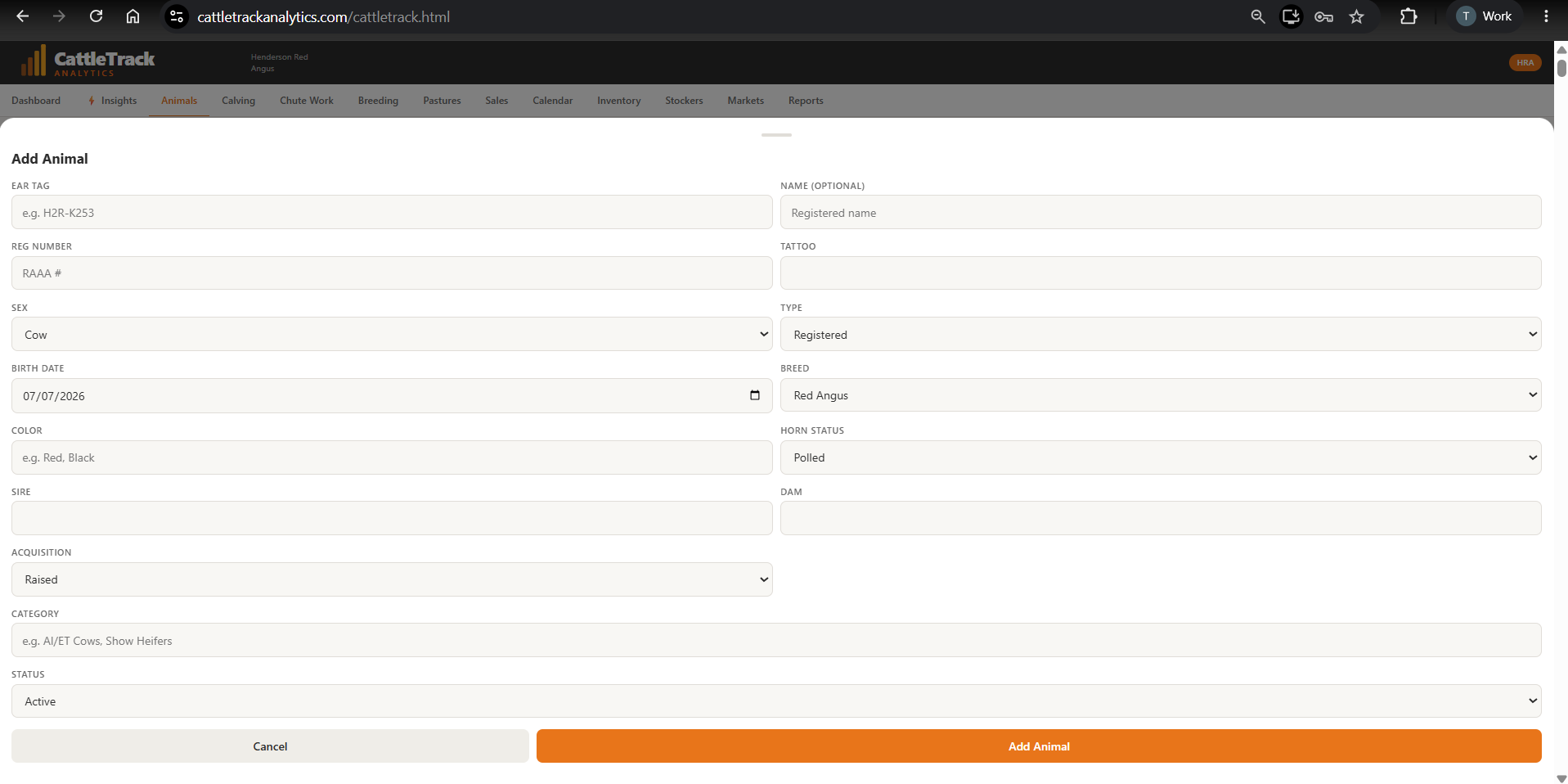
Go to Animals → Add Animal to enter cattle one at a time, or use Bulk Add Animals if you have several to enter at once — set shared fields like sex, breed, and pasture once, then list each tag individually below.

Add menu showing Add Single Animal and Bulk Add Animals options
Choose single or bulk
Add Single Animal form
Add one at a time
Bulk Add Animals form
Or add several at once

Log a Chute Work session

Next time you work cattle, open Chute Work and record weights, body condition scores, and vaccinations right there in the chute. This data feeds directly into everything else in the app.
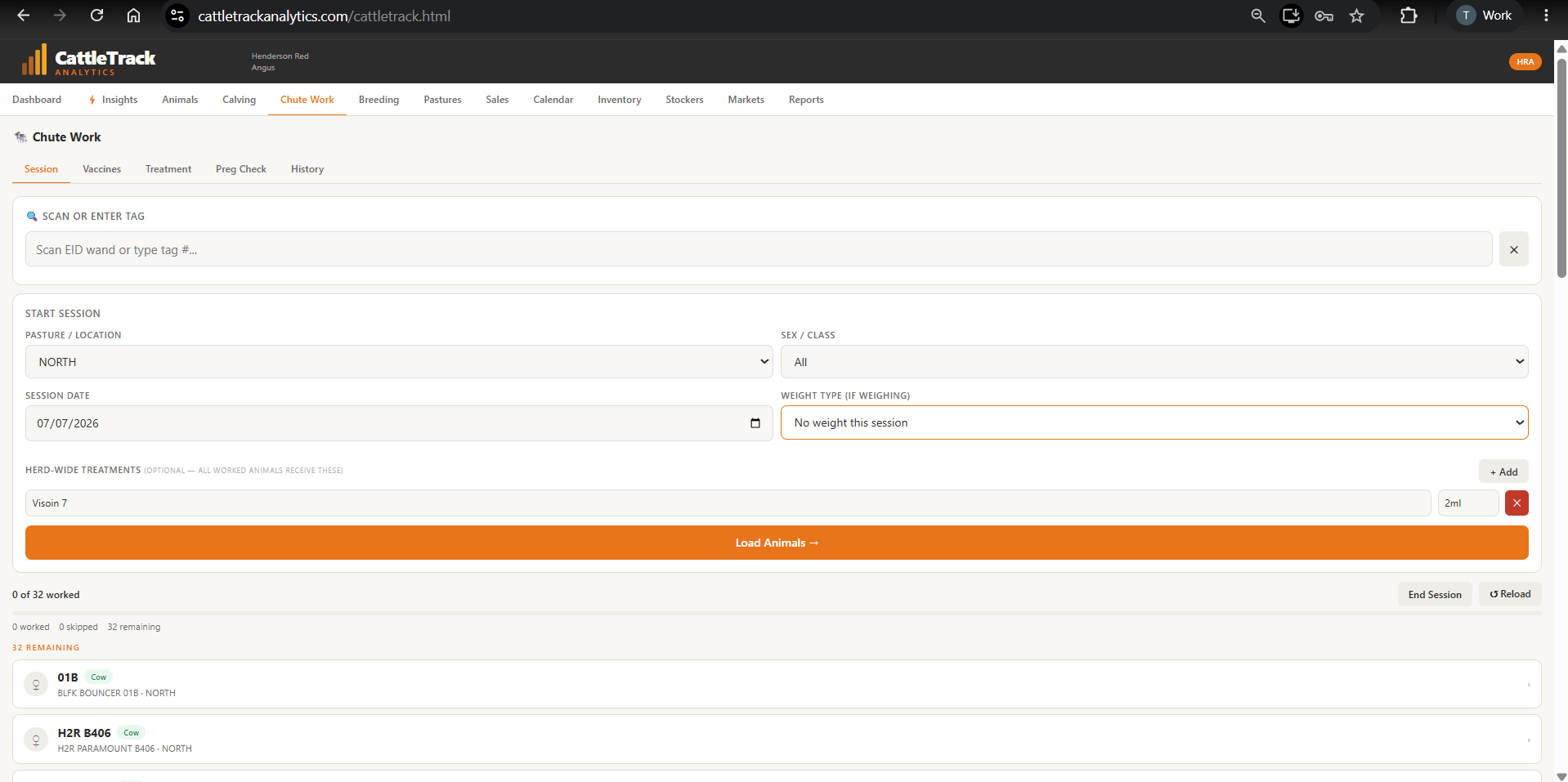
Chute Work session screen showing pasture, herd-wide treatments, and a queue of animals to work
Start a session, set herd-wide treatments, then work through the queue

Set up your Pastures

Under Pastures, add the fields and paddocks you actually rotate cattle through. Assigning animals to a pasture lets you track rotation timing and see head counts per field at a glance.
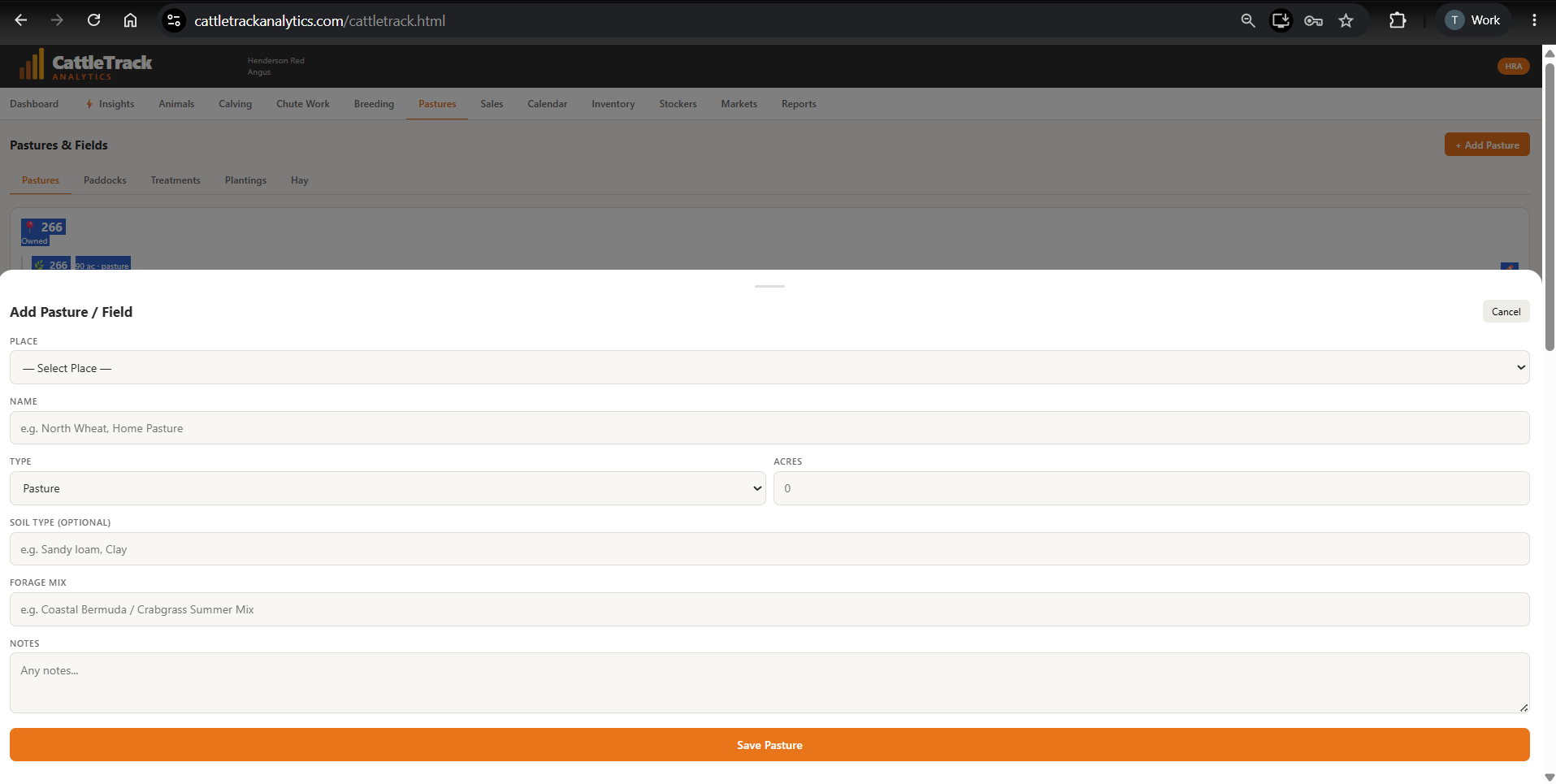
Add Pasture / Field form with name, type, acres, soil type, and forage mix
Add each pasture with its acreage and forage mix

Record breeding activity

Whether you use AI, natural service, or ET, log it under Breeding. Once you're tracking pregnancy checks and calving records, CattleTrack can show you real breeding status at a glance for every cow.
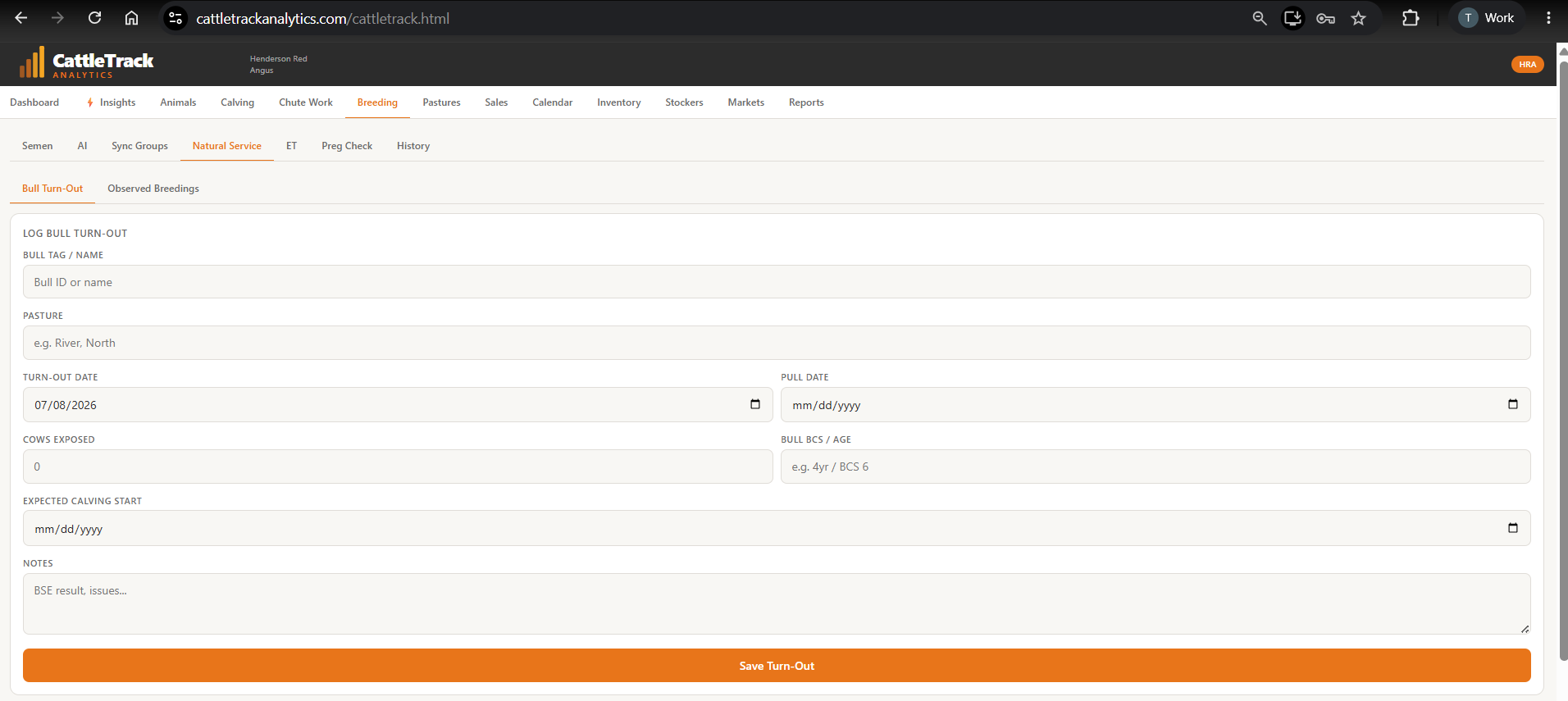
Log Bull Turn-Out form under Breeding > Natural Service
Log natural service, AI, sync groups, or ET — whatever you actually use

Check an animal's Genetic Intelligence score

Once an animal has a bit of history on file, open her profile's Eval tab to see her Genetic Intelligence score — an objective breakdown of fertility, production, maternal, structural, and genetic potential, calculated from your own herd records.
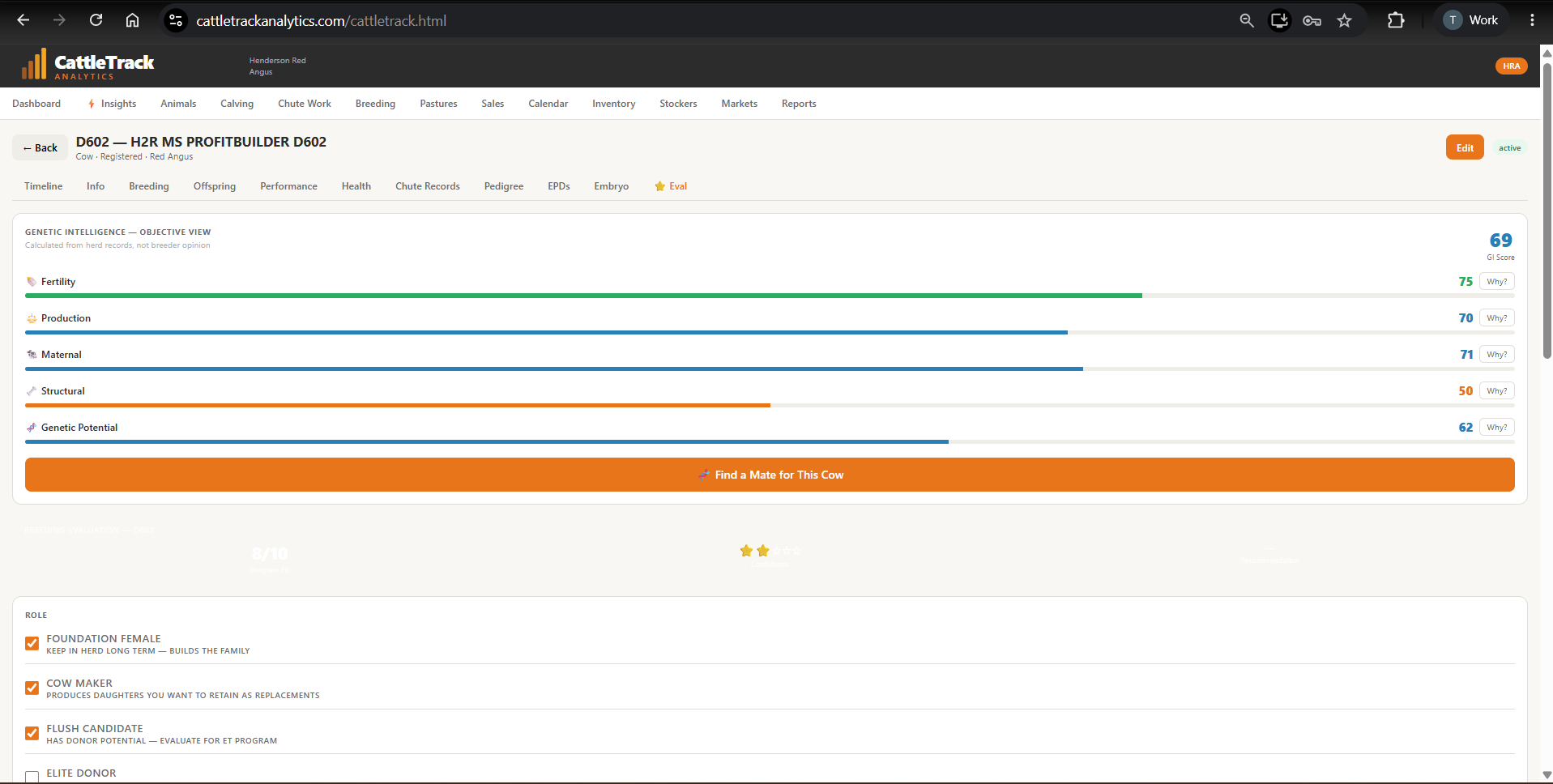
Eval tab showing Genetic Intelligence Objective View with a GI score and five component scores
Objective scoring, calculated straight from your own data
Add CattleTrack to your home screen
CattleTrack works right in your phone's browser — no app store download needed. Adding it to your home screen just gives you a one-tap icon, like any other app.

📱 iPhone / iPad (Safari)

  1. Open cattletrackanalytics.com/cattletrack.html in Safari
  2. Tap the Share icon (square with an arrow pointing up)
  3. Scroll down and tap Add to Home Screen
  4. Tap Add in the top right

🤖 Android (Chrome)

  1. Open cattletrackanalytics.com/cattletrack.html in Chrome
  2. Tap the menu in the top right
  3. Tap Add to Home screen (or Install app, if shown)
  4. Tap Add / Install to confirm

Ready to get your herd loaded in?

Jump back into CattleTrack and start with Step 1 above.

Open CattleTrack →